Your First Portrait in Five Steps
Step 1: Choose Your Appearance Goal
Decide whether you want to explore a masculine or feminine look. This is a creative editing choice, not a statement about the person's identity.
Step 2: Prepare and Upload a Portrait
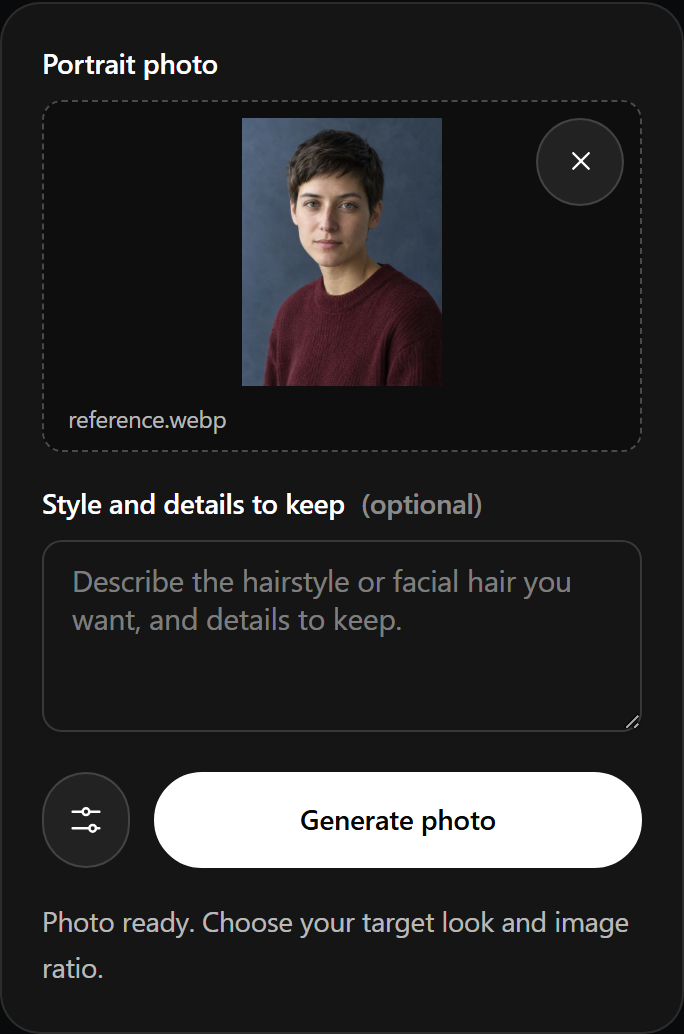
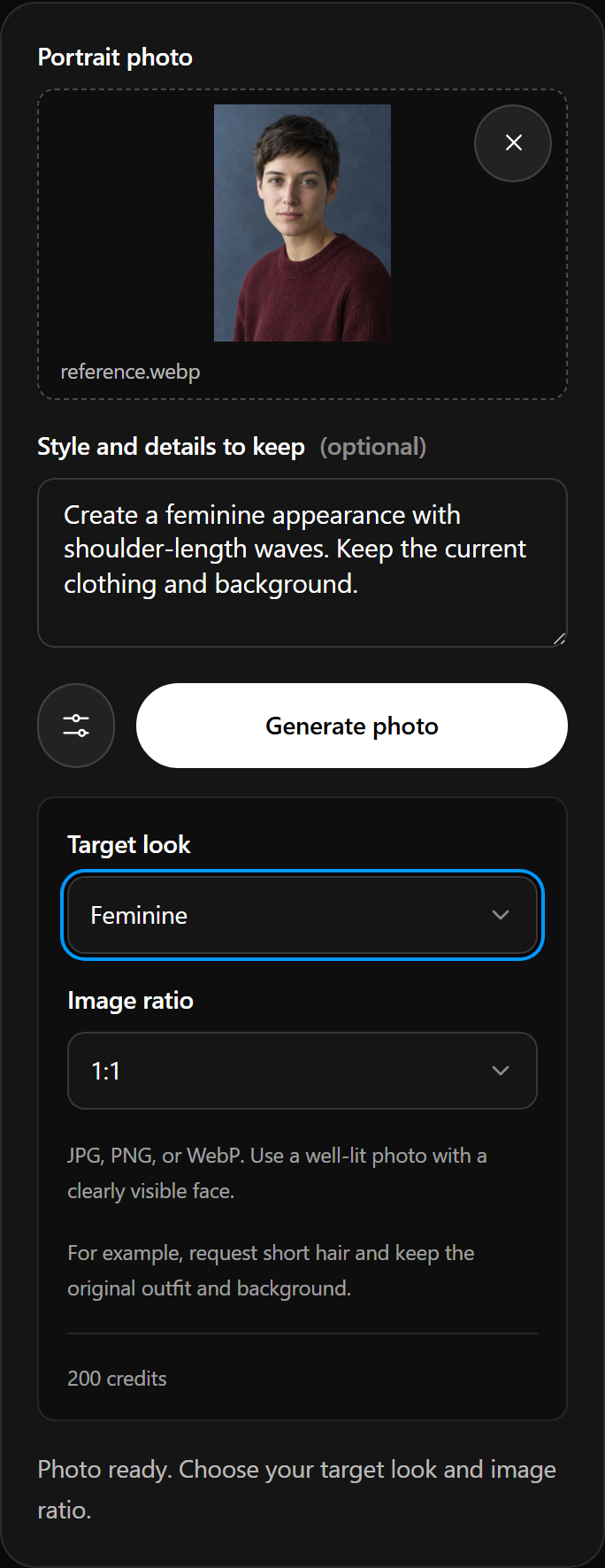
Choose a well-lit photo with the face visible. Upload the portrait you want to use as the reference for the edit.
Step 3: Describe Styling and Choose a Ratio
Add optional hair or facial-hair instructions and name any clothing, pose or background to keep. Choose 1:1, 9:16 or 16:9 for the image shape.
Step 4: Generate the Image
Start generation after the photo and request are ready. Once a result is available, check whether the appearance and retained details fit your idea.
Step 5: Download and Save
Download the finished image and save it to your device. Choose a location where you can find the portrait for your next creative task.
Begin with an Existing Portrait
Edit an Uploaded Source Image
This editor starts from a photo. Choose an appearance for a simple alternative portrait, or add text for a more specific hairstyle or facial hair. Optional text describes a change to the uploaded image; it does not replace the photo with a text-only starting mode.
Prepare the Photo and Editing Request
Pick a Clear Reference
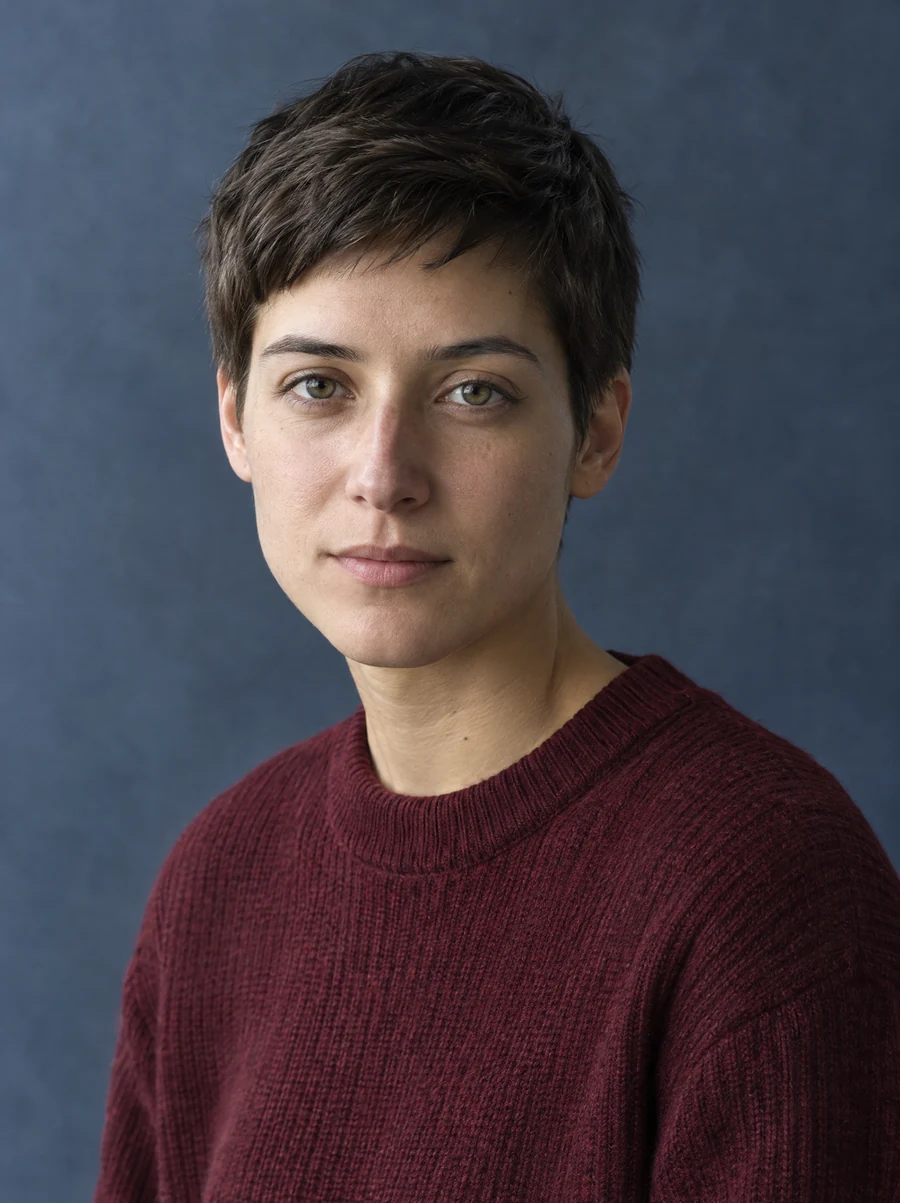
Use a portrait where light reveals the face and hair. Blur, deep shadows and objects covering the face make the visible reference less useful. If you want the same outfit or setting, choose a photo that already shows them clearly.
Separate Changes from Details to Keep
Name the change first, then the details you want retained. For example: “Give the person short wavy hair and a trimmed beard. Keep the black jacket and plain background.” Avoid instructions that ask for incompatible styles in the same image.
Set the Appearance, Framing and Retained Details
Choose a Masculine or Feminine Appearance
Select the appearance you want to explore. Add optional styling text when the overall direction alone does not explain your idea. Hair length, texture and facial-hair style are useful details to name.
Choose the Output Ratio
Use 1:1 for a square portrait, 9:16 for a tall composition or 16:9 for a wide image. Think about the space around the person and the use you have in mind. A ratio describes shape; it does not specify a resolution or quality tier.
Request Details to Keep
Ask to retain a specific outfit, pose or background when it matters to your portrait. These are editing instructions, not a guarantee that every detail will remain unchanged. Name the important elements so the request has a clear reference.
Generate a Portrait from Your Request
Finish the Input
Make sure the uploaded photo and styling text describe the same idea. Remove contradictory instructions, such as both a full beard and a clean-shaven face.
Start Generation
Use the tool's generation action after choosing the appearance and ratio. The result will be a static portrait image.
View the Completed Result
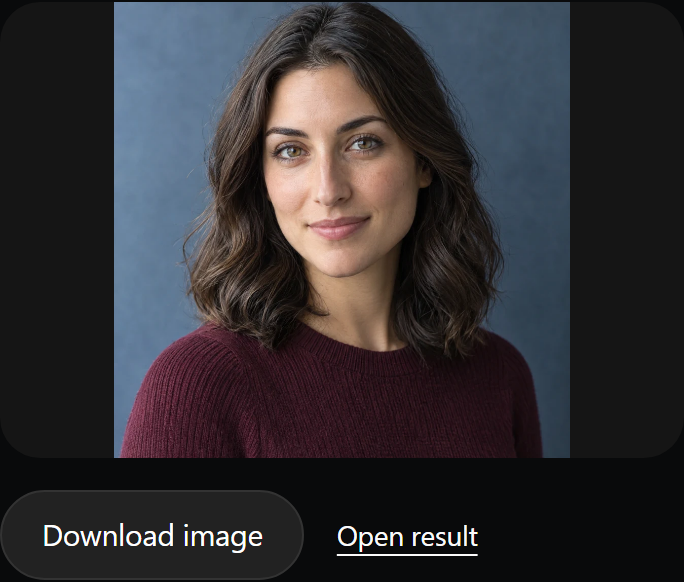
Once the image is available, look at the face and styling as well as the details you asked to keep. Treat the portrait as a creative interpretation. Decide whether it is the image you want to save.
Save the Finished Portrait
Use the download action to retrieve the completed image, then save it on your device. Give the saved file a name that distinguishes it from the source photo. Keep the original photo separately if you want to use it for another appearance idea.
Choose a Source for Your Next Edit
Use the Saved Result as a New Source
If you like the new appearance and want to explore another hairstyle, upload the downloaded result as the source for a new request. Name the further change and any features you want kept.
Return to the Original Portrait
Start from the original source when you want another direction without carrying changes from the first generated image into the next edit. Using the same original reference makes it easier to keep track of which request produced each portrait.
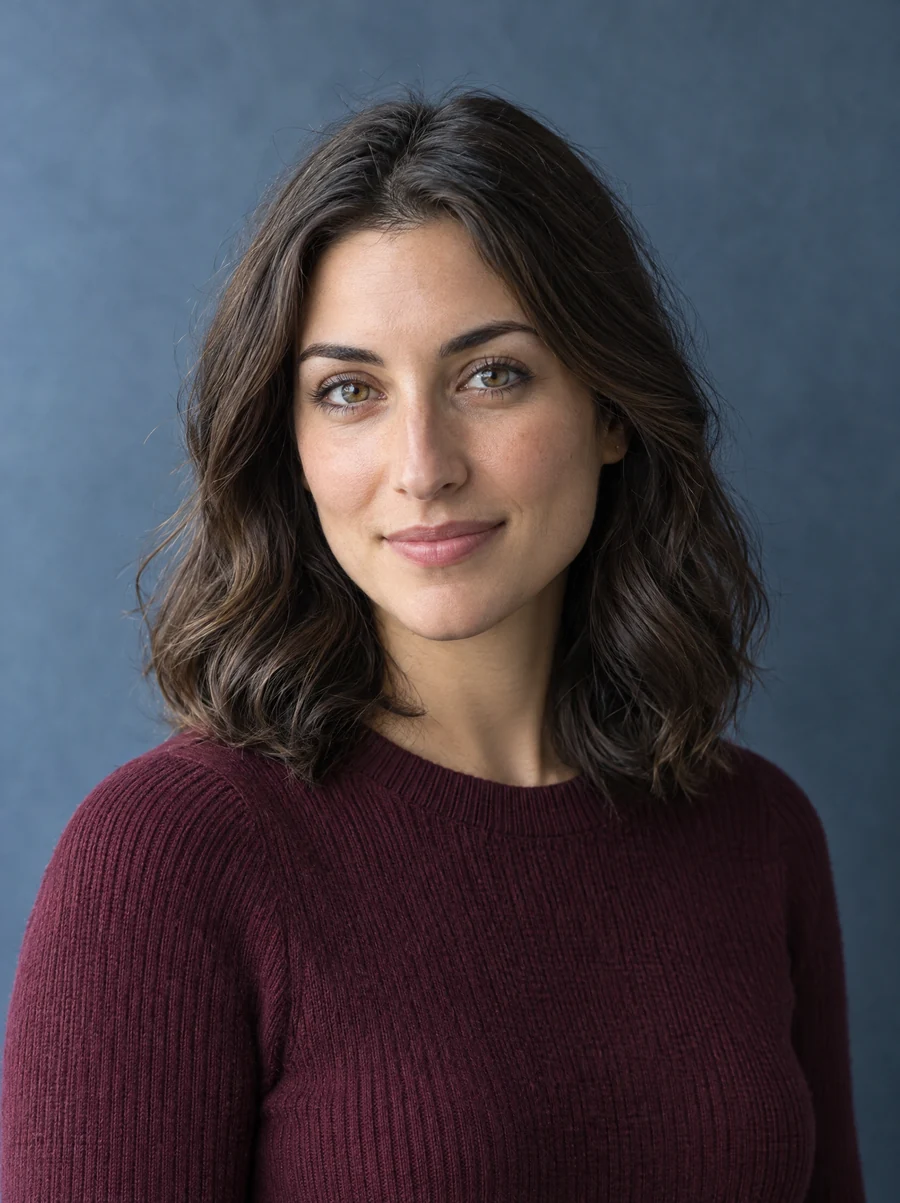
Five Portrait Editing Requests
A Masculine Look with Short Waves
Task: Explore a masculine appearance with a specific hairstyle.
Starting material: A clear portrait showing the face and existing outfit.
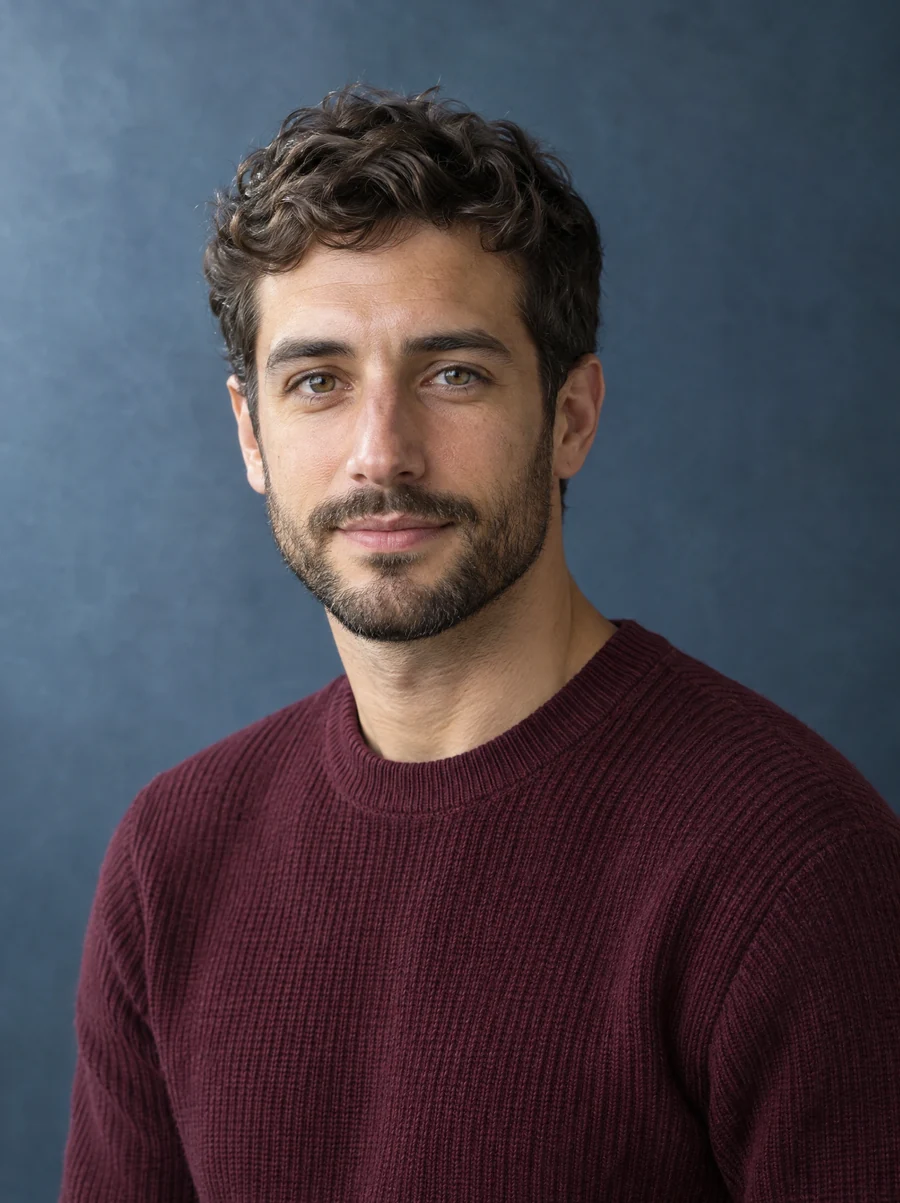
Create a masculine appearance with short wavy hair and a neatly trimmed beard. Keep the original outfit and pose.
Why it works: The request names the look, hair and grooming while separating the details to retain.
A Feminine Look with Shoulder-Length Hair
Task: Explore a feminine appearance with softer hair styling.
Starting material: A well-lit head-and-shoulders portrait.
Create a feminine appearance with shoulder-length waves. Keep the current clothing and background.
Why it works: One hair length and texture describe a coherent style without unrelated scene changes.
Keep a Familiar Outfit and Setting
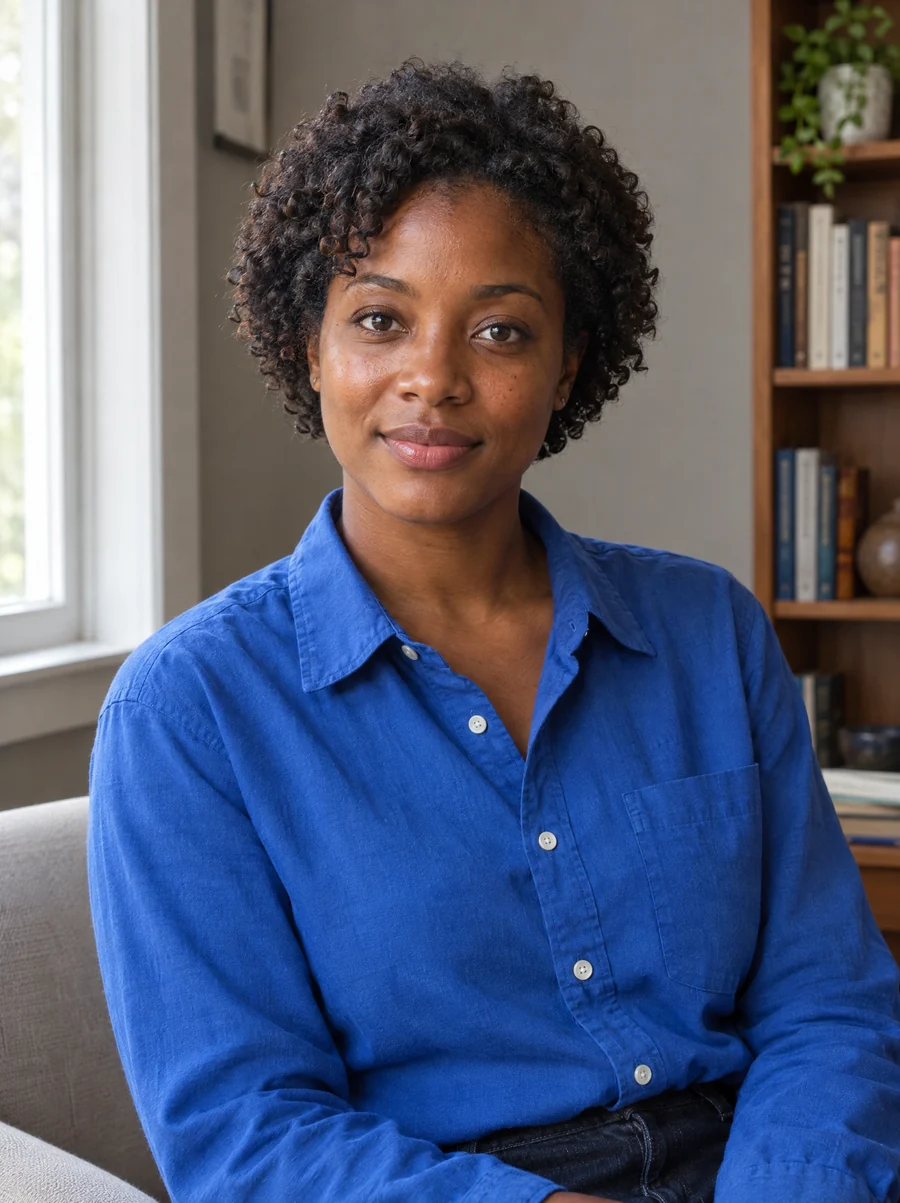
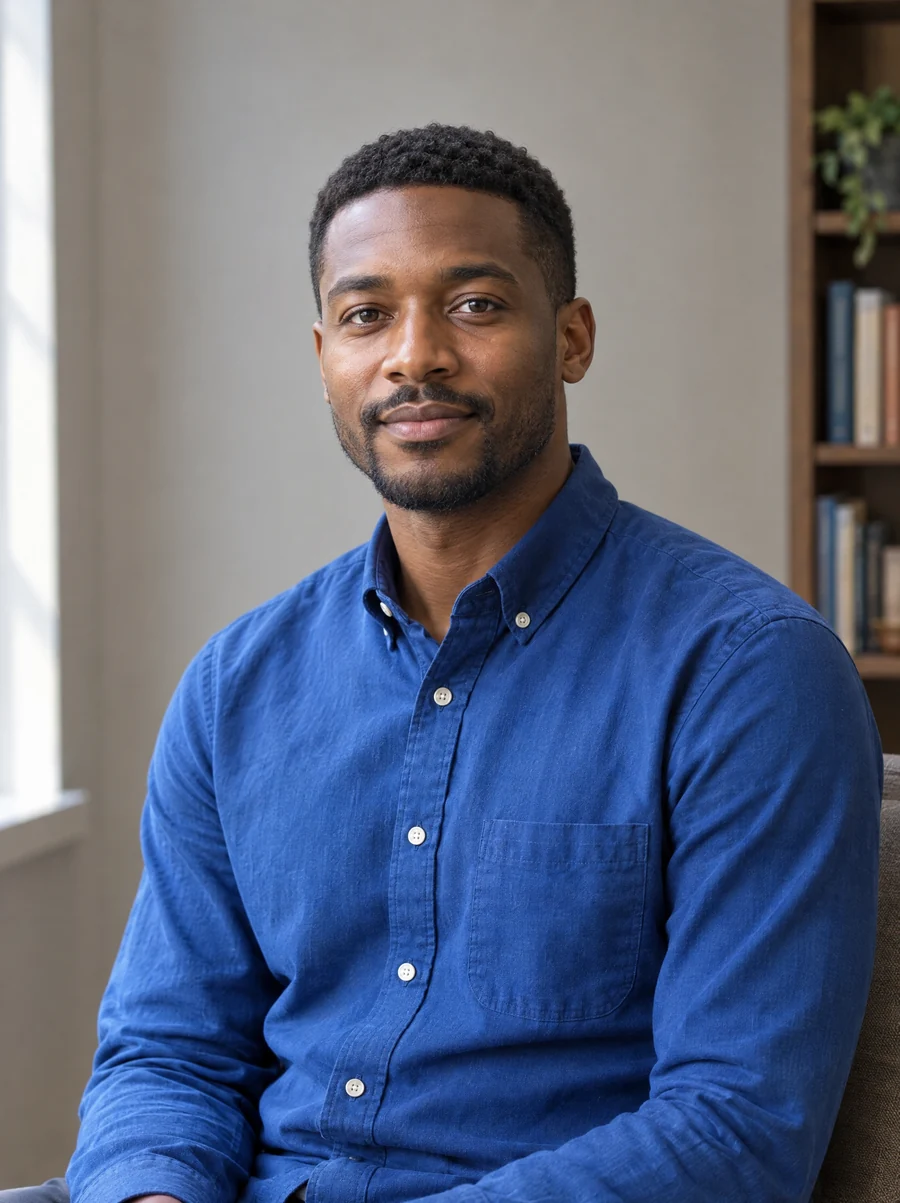
Task: Change appearance while retaining a recognizable photo setting.
Starting material: A portrait with a blue shirt, seated pose and plain background.
Explore a masculine appearance with a cropped hairstyle. Keep the blue shirt, seated pose and plain background.
Why it works: The retained elements are visible in the reference and named individually.
A Character with Longer Hair
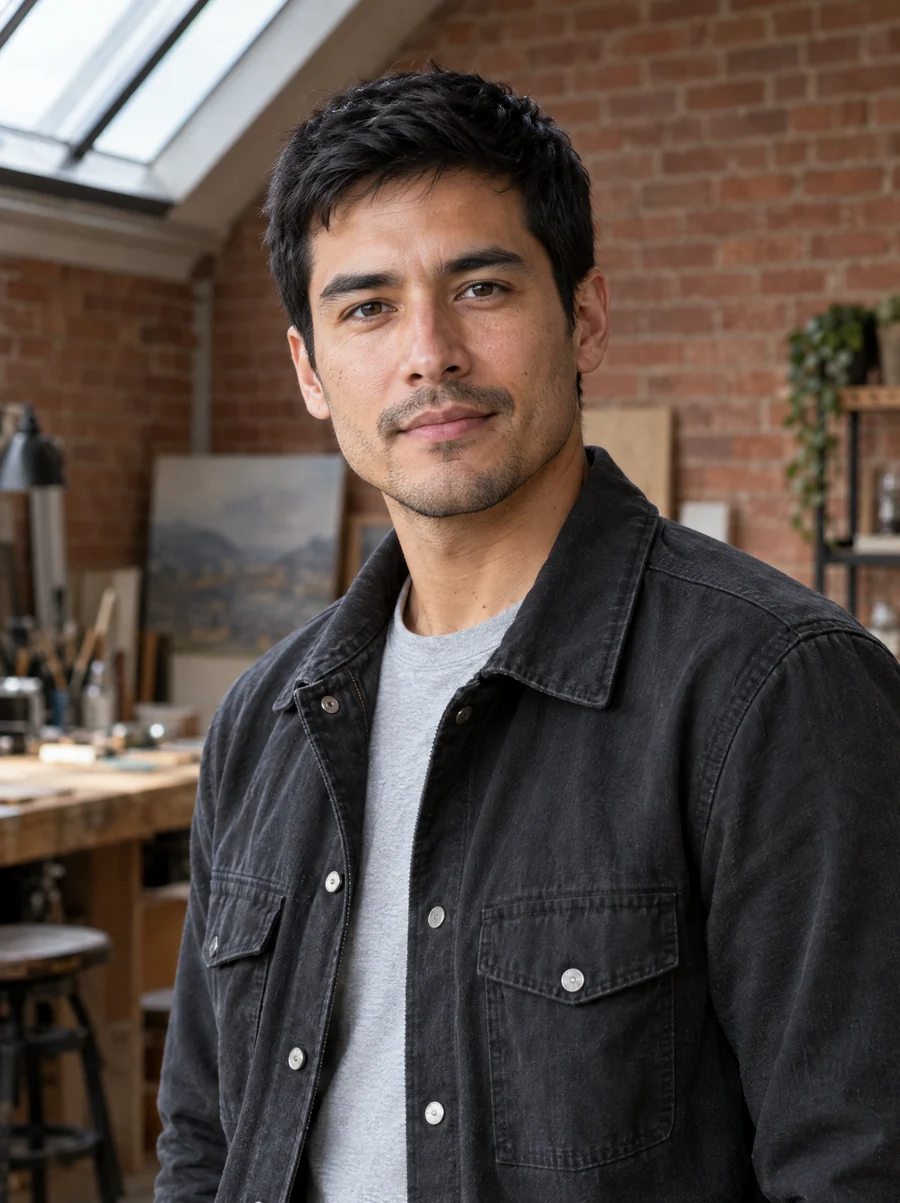
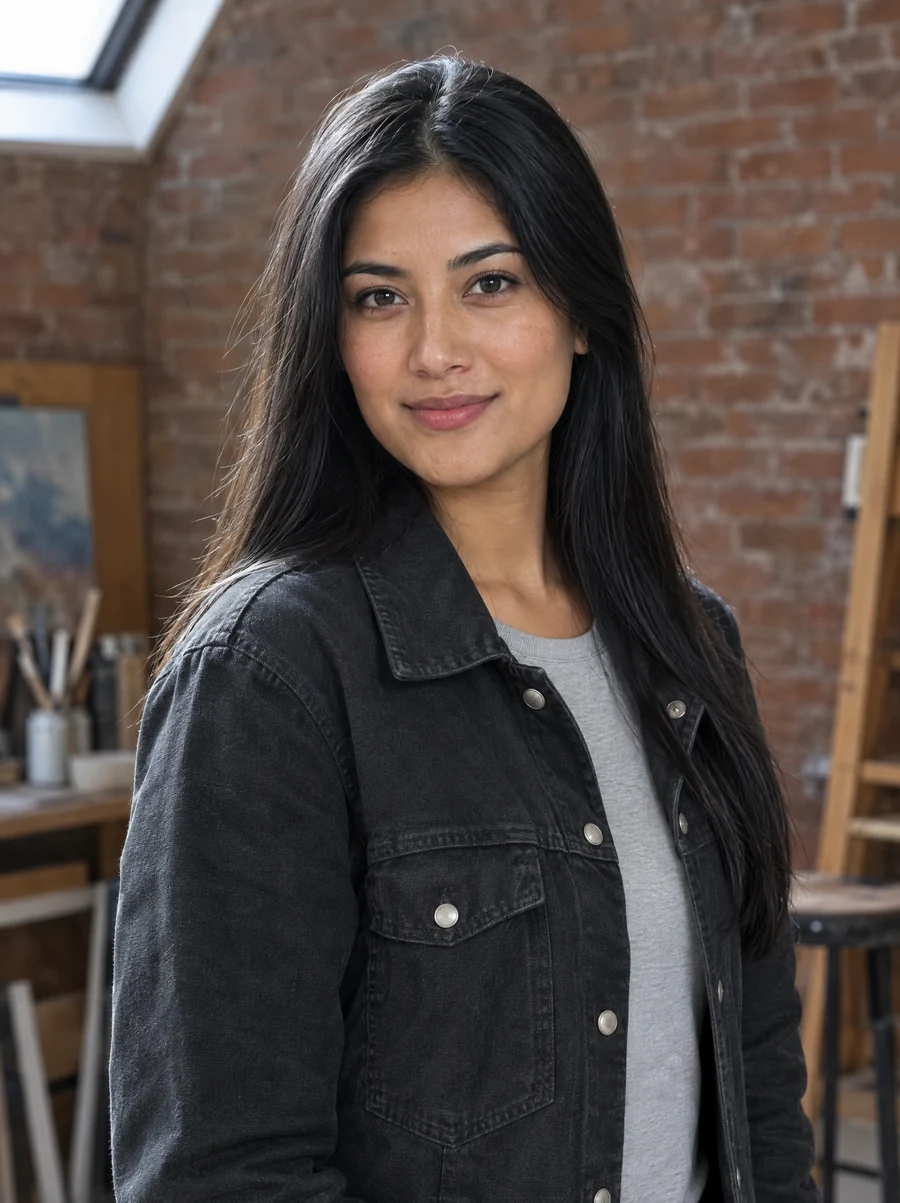
Task: Visualize another hairstyle for an original character concept.
Starting material: A portrait chosen as the character reference.
Explore a feminine appearance with long straight hair. Keep the dark jacket and standing pose.
Why it works: The requested styling gives the character a clear visual idea while preserving the selected setting.
Facial Hair for a Square Avatar
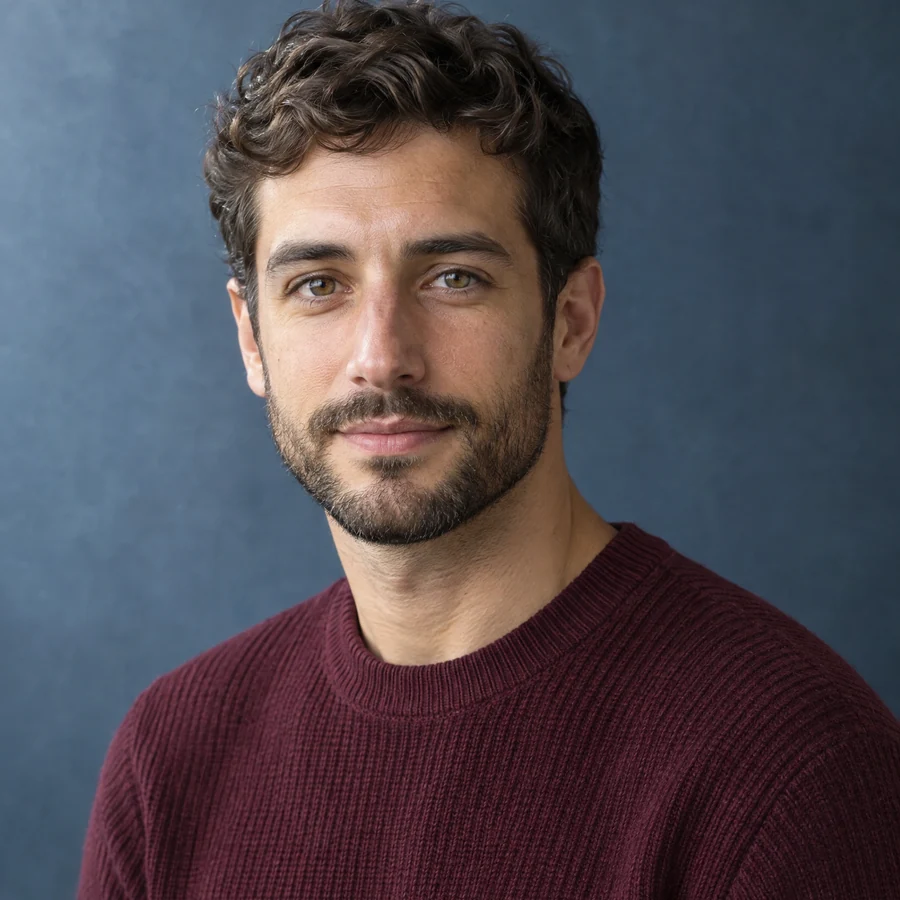
Task: Explore grooming for a profile-picture idea.
Starting material: A face-visible portrait; choose 1:1 in the ratio control.
Create a masculine appearance with a short hairstyle and a close-trimmed beard. Keep the shirt and simple background.
Why it works: The text controls styling, while the separate ratio choice gives the avatar a square frame.
Improve an Unclear or Conflicting Request
The Reference Face Is Hard to See
Choose another photo with less blur, better lighting or fewer obstructions. A clearer reference shows more of the features the editor should work with.
The Hairstyle Is Too Vague
Replace a broad request such as “different hair” with the length and texture you want. Keep the description focused on one hairstyle.
The Request Contains Opposing Instructions
Remove competing goals, such as full facial hair and a clean-shaven look. Choose the version that best matches your portrait idea.
An Outfit or Background Changed Unexpectedly
Name the specific element to keep in a new request. If preserving the original scene matters, start again from the original photo rather than an already changed result. A more specific request still does not guarantee exact retention.
The Composition Does Not Fit Its Use
Reconsider the output ratio. A square avatar and a wide image frame the person differently; choose the shape that fits the space where you want to use the portrait.
Questions about Using the Editor
Do I need a photo to start?
Yes. This workflow edits an uploaded portrait. Optional text describes the appearance or styling you want in that image.
How detailed should the styling request be?
Name the details that matter to your idea, such as shoulder-length waves or a trimmed beard. A few consistent instructions are more useful than a long list of competing changes.
Can I leave the optional text blank?
You can use the selected masculine or feminine appearance as the overall editing goal. Add text when you want a particular hairstyle, facial hair or retained photo detail.
Does a keep instruction preserve every detail?
No. It guides the edit but does not guarantee an identical outfit, pose or background. Check important details in the generated result before using it.
Does choosing a ratio set the image resolution?
No. A ratio describes the relationship between width and height. This guide does not specify a pixel size or an output quality setting.
Can I use a completed portrait for another request?
You can download the result and upload that saved image as a new source. Return to the original photo instead when you want another branch from the same starting portrait.
Does the result predict a real-life appearance?
No. It is a generated creative portrait. Changes to styling or facial details do not establish how the person would look in real life.
Where can I compare credit packages?
Visit the pricing page for the configured packages and credit policy. A package's credit balance does not by itself specify how many portraits it will produce.
Start with Your Portrait
Choose a clear photo and bring one appearance idea to the editor.